koreader manta settings
with the advent of the singspiel font and almost a dedicated year of reading on the Supernote Manta, the koreader settings originally published have long been due for an update to reflect the evolved Manta eink specific settings.
The most significant impact from the original Manta settings is merely the ripple down effect of manually setting the display resolution (versus auto-detect)—which was done simply to reduce the font size of the system menus—upon the document layout settings (font size, margins, etc.).
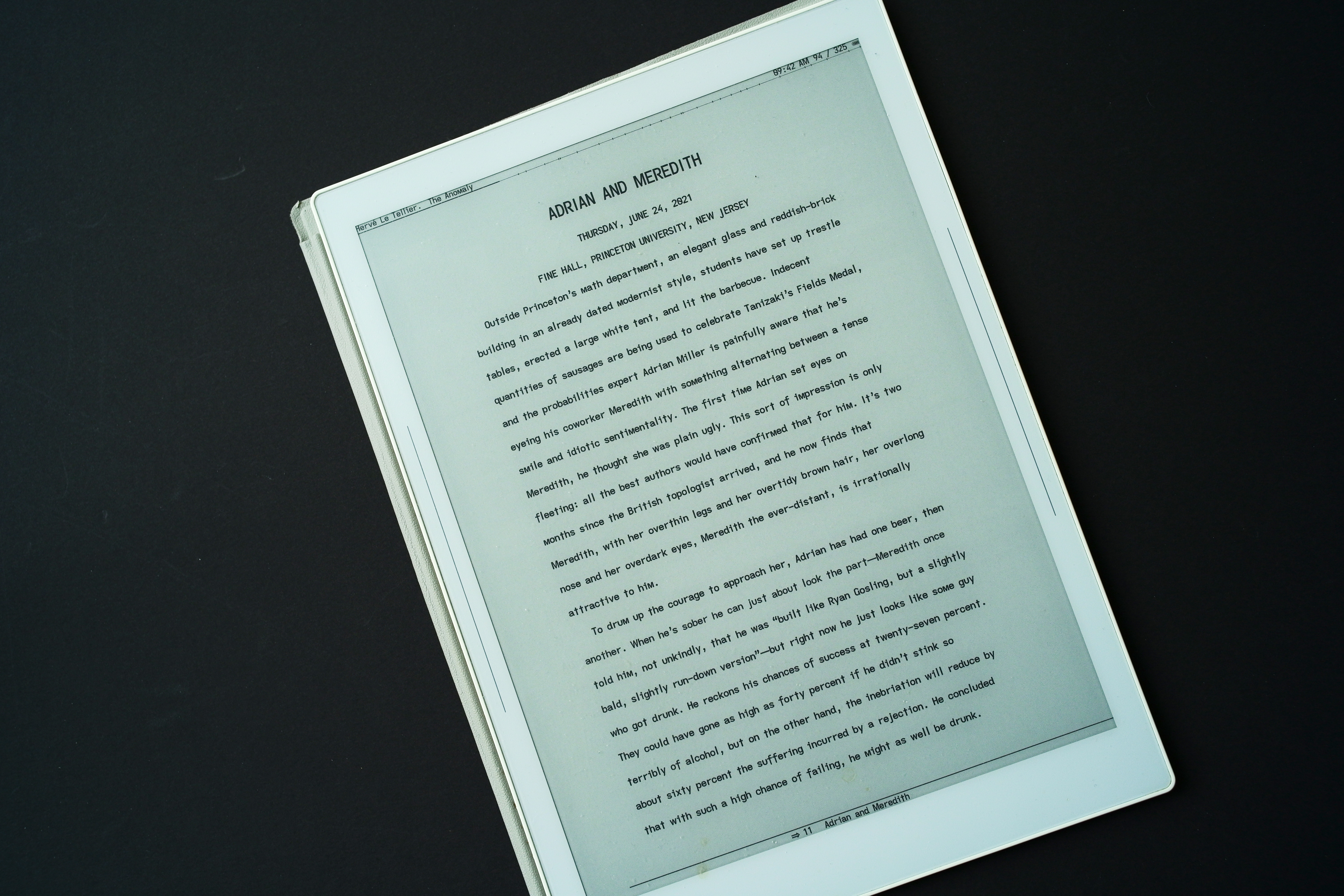
Only the current reading profile or layout is described. Such settings are purely personal in nature and will differ for everyone’s visual aesthetic and eyesight acuity—i happen to prefer a draft or “proof” layout with double line spacing for maximum readability and ease of line scanning.
(top) typesetting menu
style tweaks > pages & margins > ignore publisher page margins
style tweaks > pages & margins > vertical margins > ignore all vertical margins
style tweaks > pages & margins > windows & orphans > ignore publisher orphan & window rules
style tweaks > text > text alignment > left align most text
style tweaks > text > font size & families > ignore publisher font families
style tweaks > text > font size & families > reset main text font size
style tweaks > text > line heights > ignore publisher line heights
font > motif
typography rules > typography rules > book language: en-US
typography rules > respect embedded lang tags
typography rules > hyphenation > enable hyphenation
typography rules > hyphenation > soft hyphens only
highlights > lighten
highlights > gray highlight opacity: 0.3
highlights > highlight line height: 50%
(top) settings menu
screen DPI > custom DPI: 300
eink settings > flash buttons & menu items
eink settings > flash keyboard
eink settings > avoid mandatory black flashes in UI
taps & gestures > gesture manager > tap corner > top left > screen & lights > toggle night mode
taps & gestures > gesture manager > tap corner > top right > toggle bookmark
taps & gestures > gesture manager > tap corner > bottom left > reader > fulltext search
taps & gestures > gesture manager > tap corner > bottom right > general > {quickmenu*** layout profiles}
taps & gestures > gesture manager > long-press on corner > top left > reader > book map
taps & gestures > gesture manager > long-press on corner > top right > reader > bookmarks
taps & gestures > gesture manager > long-press on corner > bottom left > general > open vocabulary builder
taps & gestures > gesture manager > long-press on corner > bottom right > general > history
taps & gestures > gesture manager > one-finger swipe > top edge right > reader > table of contents
taps & gestures > gesture manager > one-finger swipe > top edge left > general > calibre metadata search
taps & gestures > gesture manager > one-finger swipe > bottom edge right > reader > forward to next location
taps & gestures > gesture manager > one-finger swipe > bottom edge left > reader > back to previous location
taps & gestures > gesture manager > double tap > top left > reader > page browser
taps & gestures > gesture manager > double tap > top right > reader > book description
taps & gestures > gesture manager > double tap > device > toggle Wi-Fi
taps & gestures > gesture manager > double tap > general > {quickmenu*** font profiles}
status bar > alt status bar > auto refresh
status bar > alt status bar > book title
status bar > alt status bar > book author
status bar > alt status bar > current time
status bar > alt status bar > current page
status bar > alt status bar > total pages
status bar > alt status bar > chapter marks
status bar > alt status bar > battery status icon > battery icon
status bar > alt status bar > font size: 27
status bar > progress bar > show progress bar
status bar > progress bar > show chapter-progress bar instead
status bar > progress bar > position > below items
status bar > progress bar > thickness, height & colors** > thin
status bar > progress bar > thickness, height & colors** > height: 1
status bar > progress bar > thickness, height & colors** > read color: 0% black
status bar > progress bar > thickness, height & colors** > unread color: 100% black
status bar > progress bar > margins > same as book margins
status bar > status bar items > pages lest in chapter
status bar > status bar items > Wi-Fi status
status bar > status bar items > page turning inverted
status bar > status bar items > chapter title
status bar > configure items > show all items at once
status bar > configure items > auto refresh items
status bar > configure items > hide inactive items
status bar > configure items > hide battery item when higher than: 100%
status bar > configure items > item font > item font: ottawa
status bar > configure items > item font > item font size: 11
status bar > configure items > item font > items in bold
status bar > configure items > item symbols > icons
status bar > configure items > item separator > vertical bar
status bar > configure items > item max width > book-author item: 100%
status bar > configure items > item max width > boot-title item: 100%
status bar > configure items > item max width > chapter-title item: 100%
status bar > configure items > alignment > center
status bar > configure items > height: 10
status bar > configure items > bottom margin: 3
status bar > lock status bar
status bar > long press on status bar to skim
**thickness, height & colors from user patch 2-change-status-bar-color.lua
***pro-tip: in addition to layout profiles, creating simple profiles of
fonts (singly) allow creating quickmenu popup access to layouts and fonts (in
my use case). quickmenu’s streamline the UI of KOReader immensely for rapid
access to one’s most frequently used menu items. To create a quickmenu from a
gesture assignment (to list the gesture actions versus automatically executing them
all)..
taps & gestures > gesture manager > {gesture} > {gesture location} > show as quickmenu
taps & gestures > gesture manager > {gesture} > {gesture location} > anchor quickmenu to gesture position
taps & gestures > gesture manager > {gesture} > {gesture location} > always actve
(bottom) margins menu
L/R margins > left: 108
L/R margins > right: 108
sync T/B margins: off
top margin: 45
bottom margin: 37
(bottom) page menu
line spacing: 217%
(bottom) text menu
font size: 12.0
word spacing > scaling: 100%
word spacing > reduction: 100%
(bottom) font menu
contrast: 4
font weight: 1.00
(bottom) settings menu
alt status bar: on
embedded style: on
embedded fonts: off
image scaling: best
user patches
to complete the layout to..
- apply the singspiel font to the alt status bar
- apply the singspiel font to the status bar
- apply the singspiel font to the system menus
- increase the status bar item separation
refer to the original manta/koreader writeup on user patches for layout and UI behavioural tweaks.
touch zones
the touch zones defined in the defaults.custom.lua file have also been changed to reflect the move to swiping for menu access versus tapping (to avoid inadvertent tap gesture actions)..
return {
DTAP_ZONE_MENU = { x = 0, y = 0, h = 0.06, w = 1 },---top menu bar
DTAP_ZONE_MENU_EXT = { x = 0, y = 0, h = 0.20, w = 1 },
DTAP_ZONE_CONFIG = { x = 0, y = 0.94, h = 0.06, w = 1 },---bottom layout bar
DTAP_ZONE_CONFIG_EXT = { x = 0, y = 0.80, h = 0.20, w = 1 },
DTAP_ZONE_FORWARD = { x = 0.035, y = 0, h = 1, w = 0.965 },---page advance edge
DTAP_ZONE_BACKWARD = { x = 0, y = 0, h = 1, w = 0.035 },
DTAP_ZONE_TOP_LEFT = { x = 0, y = 0, h = 0.06, w = 0.05 },---long press corners
DTAP_ZONE_TOP_RIGHT = { x = 0.95, y = 0, h = 0.06, w = 0.05 },
DTAP_ZONE_BOTTOM_LEFT = { x = 0, y = 0.95, h = 0.05, w = 0.05 },
}
menu hiding
a recent plugin has become available to disable menus which allows removal of seldom used menu items, significantly reducing the menu “noise” (of KOReader’s overwhelming configurability for novices) whilst permitting more focused menu displays.
Refer to the menu_disabler_profiles.lua file in the repos (which may be loaded and subsequently modified as required). This profile is tuned for primarily for altering the page layout of ebooks. Access to (adding) other needed options is easily re-enabled via the plugin interface from the tools menu.
repos
Refer to the supernote folder in the dotfiles for the patches and the raw lua settings.